How to shorten Google Forms Link (Built-in method & Replug)

 7 minutes
Google Forms are perfect for collecting feedback, running surveys, or managing event registrations. But here’s the catch: the default links they generate are long, messy, and hard to share.
Not only do these cluttered URLs look unprofessional, but they’re also difficult to remember, tricky to fit into social media bios, and almost impossible to use on printed material.
The good news? You can shorten your Google Forms link in just a few clicks. In this guide, we’ll walk you through:
- How to shorten a Google Forms link using Google’s built-in option
- Why shortening links matters (aesthetics, user experience, branding, security, analytics)
- How to take it further with Replug: for branded links, click tracking, QR codes, and more
By the end, you’ll know not only how to create a short, neat link for your form but also how to maximize its impact for sharing, branding, and conversions.


Why shorten Google Forms links?
Before we get into the steps, let’s answer the big question: why bother shortening at all?
Here are the top five reasons:
- Visual appeal: Shortened links look cleaner and more professional, especially when shared in emails, on social media, or in presentations.
- User experience: A short link is easier to type, remember, and share. It improves overall accessibility.
- Branding & trust: Branded links increase CTR, look professional, build trust, and are far more memorable than random strings of characters.
- Character limitations: Platforms like X (formerly Twitter), SMS, and messaging apps often have word or character limits. A long Google Forms link can get cut off or even break.
- Tracking & analytics: While Google’s built-in shortener only makes the URL shorter, a custom link shortener gives you click tracking, engagement insights, and campaign performance plus detailed analytics.
How to shorten Google Forms link (built-in method)
Google Forms actually includes a simple option to shorten your link. Here’s how:
- Open your Google Form.
- Click the Send button in the top-right corner.
- Select the link icon (the chain symbol).
- Tick the Shorten URL checkbox.
- Click Copy to grab your new, shorter link.
That’s it! In seconds, you’ll have a cleaner link that’s easier to share.
👉 Limitation: This method only shortens the link. You can’t rename it, brand it, or track performance.
How to shorten and customize Google Forms Link with Replug in 5 easy steps
If you want more than just a cleaner link, this is where Replug.io comes in.
Here’s how to shorten your Google Forms link with this leading link shortener, and brand it using advanced customization features:
Step 1: Copy your Google Forms link
Open your Google Forms link and copy it (via Send → Link icon → Copy).
Step 2: Log in to Replug
Visit Replug and log in to your account. If you’re new, sign up for a free account to get started.
Step 3: Create a shortened link
After signing in, go to your Replug app dashboard.
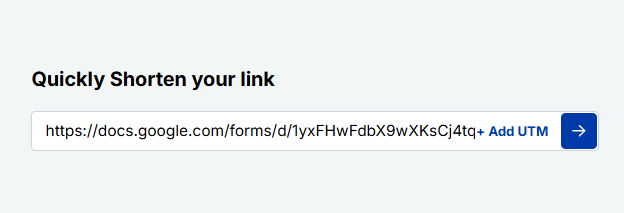
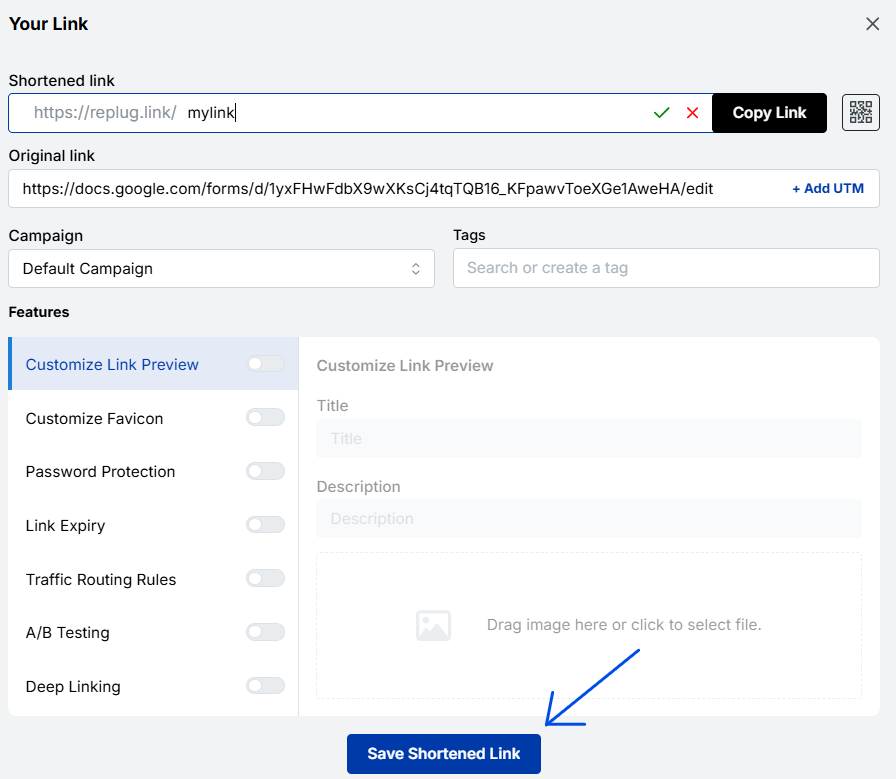
Paste the Google Form URL into the “Quickly Shorten your link” field located in the upper left corner.
Customize the slug as per your liking.
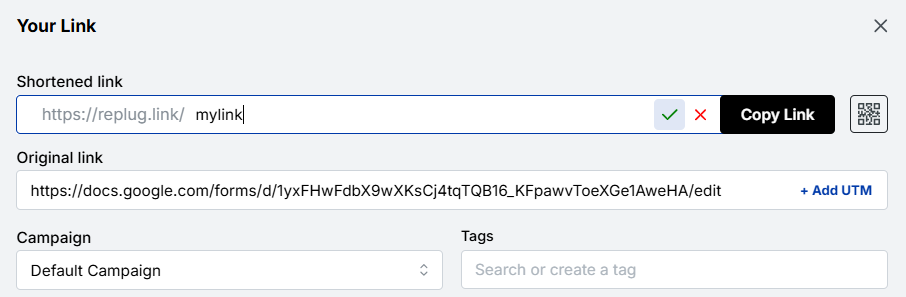
And press the tick button in front of it.
Here, you can also generate dynamic QR codes to share your links effortlessly offline. Or add UTM tracking parameters to monitor your link performance.
Step 4: Customize advanced features (optional)
Here’s the exciting part: In addition to customizing your link, you can also do the following.
- Add link preview: Create eye-catching link previews for better engagement on social media.
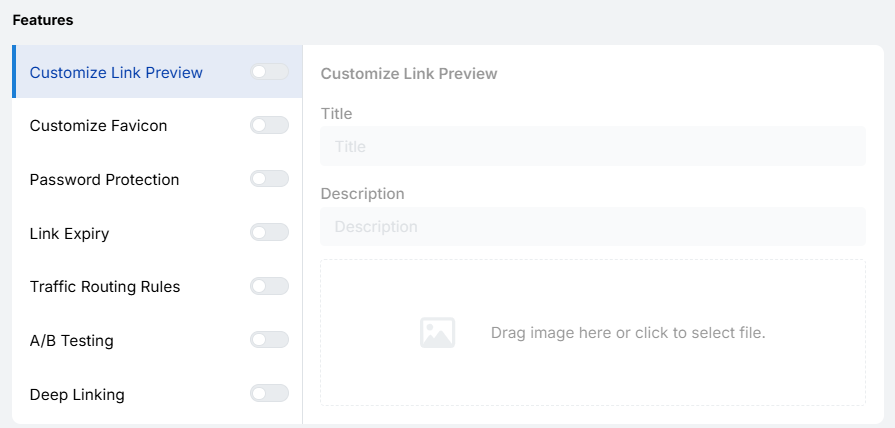
- A/B test URL: Compare multiple URLs to find the best-performing version.
- Expiration dates: Set an expiry date for your link if it’s for a limited-time campaign.
Step 5: Save and share
Click the “Save” button to generate the shortened link. Copy your new link and share it across email, social media, or any other platform.
And you’re done!
Read also: How to make a QR code for Google Forms?
What are the benefits of creating a Short Google Forms link with Replug?
Unlike the built-in method, Replug makes your Google Forms link short, trackable, and brand-consistent. With Replug, you can:
- Create branded, memorable links
- Track clicks and engagement with detailed link analytics
- Generate QR codes for offline sharing
- Add retargeting pixels for ad campaigns
- Run A/B tests on different URLs
- Set expiration dates for time-limited forms
Comparison: Google Forms Shortener vs. Replug
For your ease, we’ve put together a quick comparison table between Google Forms Shortener and Replug. This way, you can see at a glance what each tool offers and decide which fits your needs best.
| Feature | Google Forms | Replug |
| Shortens link | ✅ | ✅ |
| Customize link slug | ❌ | ✅ |
| Use branded domain | ❌ | ✅ |
| Track clicks & analytics | ❌ | ✅ |
| Generate QR codes | ❌ | ✅ |
| Retargeting pixels | ❌ | ✅ |
| A/B testing | ❌ | ✅ |
| Expiration dates | ❌ | ✅ |
Conclusion
In this blog, we talked about why shortening Google Forms links isn’t just about saving space; it’s about creating links that are easy to share, trustworthy, and professional. While Google’s default option does the job, it falls short when it comes to branding, insights, and overall impact.
That’s where Replug steps in. With branded links, detailed analytics, retargeting, and A/B testing, it transforms a simple form link into a tool that drives engagement and optimizes conversions rate.
Ready to turn your Google Form links into growth engines? Try Replug today!